转自:https://tinychen.com/20241211-huawei-sp333-firmware-burn/
参考: https://zhuanlan.zhihu.com/p/694175866 固件下载H3C的切记

准备工作
固件我们直接去官网下载
# 官方的固件下载地址
https://network.nvidia.com/support/firmware/connectx4lxen/

# 刷固件需要用到的MFT工具
https://network.nvidia.com/products/adapter-software/firmware-tools/

# 网卡驱动
https://network.nvidia.com/products/adapter-software/ethernet/windows/winof-2/
华子的网卡固件在官网没办法下载,但是在超聚合官网可以下载
https://support.xfusion.com/support/#/zh/software-basics/d4b7de78-c4c0-46db-bbbd-98926e13e2da关于SP333和SP380这两个型号的华子官网介绍
# SP333是2*10GE SFP+,向下兼容1GE速率(使用10GE SFP+光模块)。
https://support.huawei.com/enterprise/zh/doc/EDOC1100198574/672e0978
# SP380是2*25GE SFP28,向下兼容10GE速率(使用10G SFP+光模块)。
https://support.huawei.com/enterprise/zh/doc/EDOC1100056515/c20b2897
根据之前对MCX4网卡的了解,这两个应该就是MCX4121A-XCAT和MCX4121A-ACAT的OEM版本
https://network.nvidia.com/files/doc-2020/pb-connectx-4-lx-en-card.pdf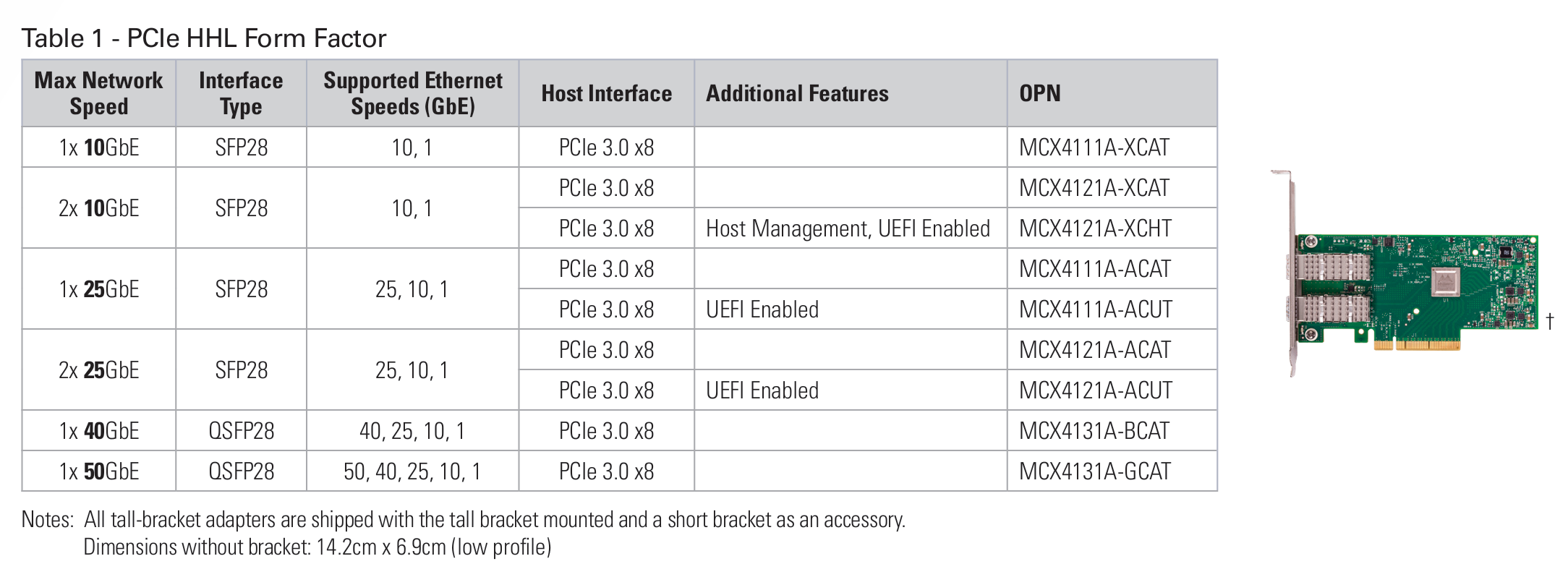
这里需要提前说一下结论,这里刷固件的时候分别刷入了mellanox官方的MCX4121A-ACAT固件和华为的SP380固件:
刷入mellanox官方固件的时候,网卡只有一个网口能正常识别到模块,另一个网口在系统中能看到网卡,但是无法识别线缆(手头的AOC和DAC都不行,换另一个网口则都正常),并且正常识别的网卡在win11中没办法正常通过DHCP获取IP(其他系统暂时没测试)
刷入华为的SP380固件的时候,网卡信息能正常识别,两个网口各项功能看起来正常。建议还是刷入华为的固件比较稳妥。
windows 刷机
刷机命令参考如下
flint --no_fw_ctrl -allow_psid_change -d {设备号} -i {文件路径(注:这里最好为根目录下,如不为根目录注意目录名中不要含有中文)} burn这里我用powershell执行的命令参考如下:
PS C:\Users\Mr7th\Desktop\NIC-SP380-CX4Lx-FW-14.31.1014> flint --no_fw_ctrl -allow_psid_change -d mt4117_pciconf0 -i .\fw-ConnectX4Lx-rel-14_31_1014_H_SP380-FlexBoot-3.6.403_4117_14_24_13_RELEASE_X64_AARCH64_20210706_VPD.bin burn
Done.
    Current FW version on flash:  14.32.1900
    New FW version:               14.31.1014

    Note: The new FW version is older than the current FW version on flash.

 Do you want to continue ? (y/n) [n] : y


    You are about to replace current PSID on flash - "MT_2420110034" with a different PSID - "HUA0000000023".
    Note: It is highly recommended not to change the PSID.

 Do you want to continue ? (y/n) [n] : y
Burning FW image without signatures - OK
Restoring signature                     - OK
-I- To load new FW run mlxfwreset or reboot machine.刷固件需要等待挺长一段时间的,要有耐心,刷完之后我们使用mlxfwmanager命令检查当前固件信息
PS C:\Users\Mr7th\Desktop\NIC-SP380-CX4Lx-FW-14.31.1014> mlxfwmanager
Querying Mellanox devices firmware ...

Device #1:
----------

  Device Type:      ConnectX4LX
  Part Number:      MCX4121A-ACA_Ax
  Description:      ConnectX-4 Lx EN network interface card; 25GbE dual-port SFP28; PCIe3.0 x8; ROHS R6
  PSID:             MT_2420110034
  PCI Device Name:  mt4117_pciconf0
  Base MAC:         N/A
  Versions:         Current        Available
     FW             14.31.1014     N/A
     FW (Running)   14.32.1900     N/A
     PXE            3.6.0502       N/A
     UEFI           14.25.0017     N/A

  Status:           No matching image found
看起来没问题,我们直接重启电脑,再看看网卡的信息
PS C:\Users\Mr7th> mlxfwmanager
Querying Mellanox devices firmware ...

Device #1:
----------

  Device Type:      ConnectX4LX
  Part Number:      Huawei_SP380_ConnectX4Lx_2P_25GbE_Ax
  Description:      Huawei SP380 2-port 25G Ethernet Adapter PCIE Gen3 x8
  PSID:             HUA0000000023
  PCI Device Name:  mt4117_pciconf0
  Base MAC:         N/A
  Versions:         Current        Available
     FW             14.31.1014     N/A
     PXE            3.6.0403       N/A
     UEFI           14.24.0013     N/A

  Status:           No matching image found


PS C:\Users\Mr7th> flint -d mt4117_pciconf0 q
Image type:            FS3
FW Version:            14.31.1014
FW Release Date:       30.6.2021
Product Version:       14.31.1014
Rom Info:              type=UEFI version=14.24.13 cpu=AMD64,AARCH64
                       type=PXE version=3.6.403 cpu=AMD64
Description:           UID                GuidsNumber
Base GUID:             N/A                     8
Base MAC:              N/A                     8
Image VSD:             N/A
Device VSD:            N/A
PSID:                  HUA0000000023
Security Attributes:   N/A
按下win+R键,输入ncpa.cpl进去管理界面查看网卡信息
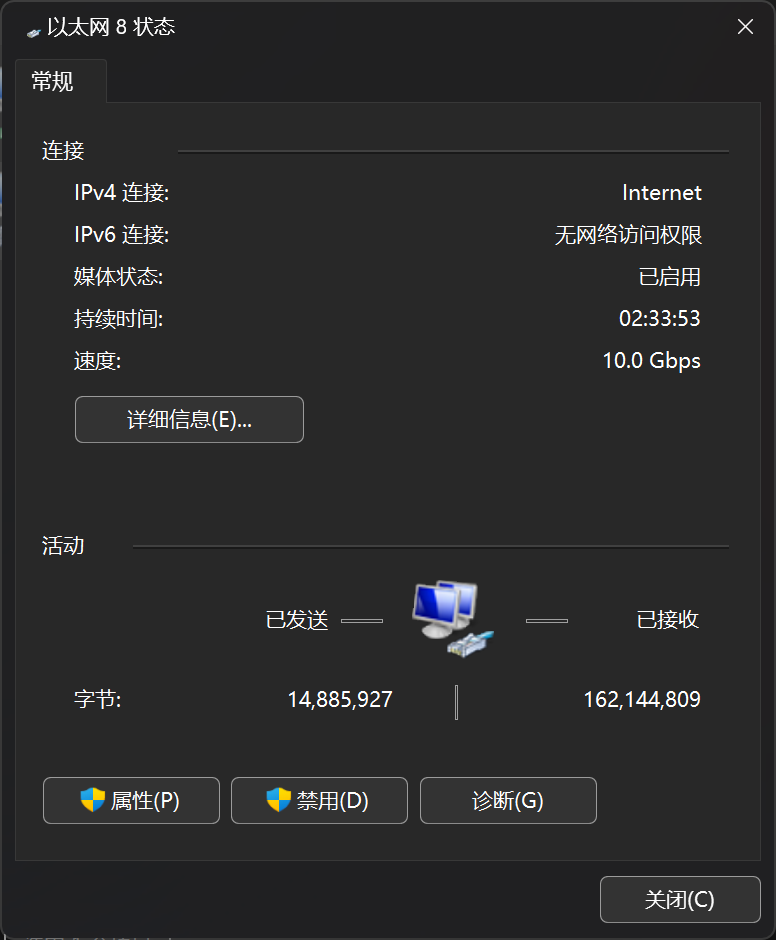
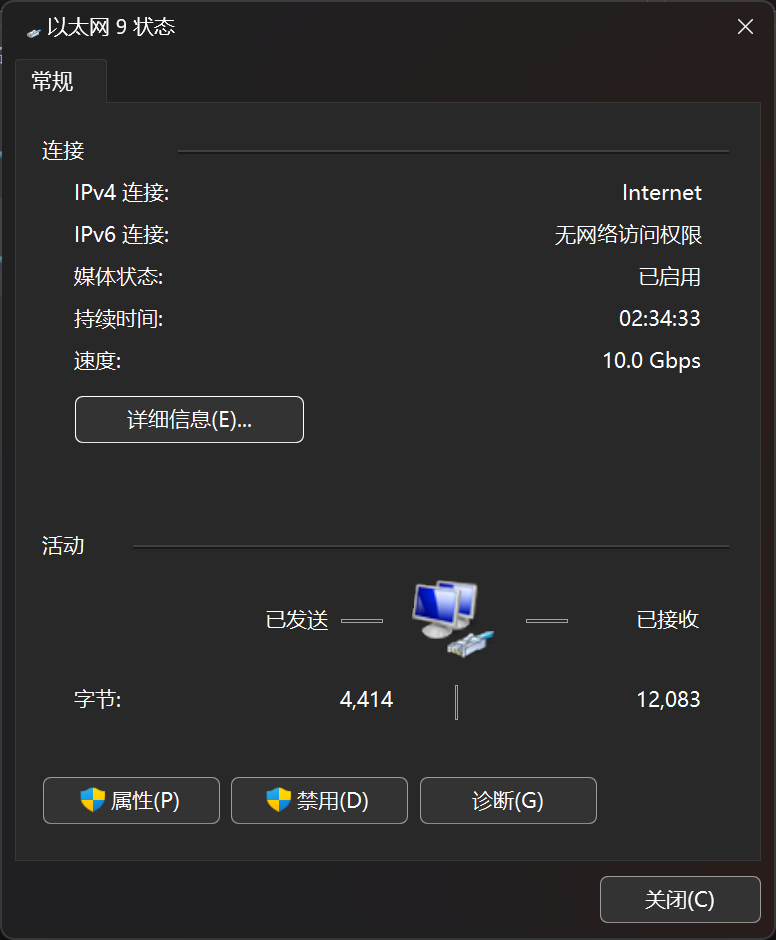
可以看到这两个网卡都正常协商到了10G速率(只有10G交换机),并且都通过DHCP的方式正常获取到了IP、DNS等信息
也可以通过下面这两个命令来查看网卡的速率信息
PS C:\Users\Mr7th> wmic nic where netEnabled=true get name,speed
Name                                        Speed
Realtek Gaming 2.5GbE Family Controller #2  2500000000
Mellanox ConnectX-4 Lx Ethernet Adapter #5  10000000000
Mellanox ConnectX-4 Lx Ethernet Adapter #6  10000000000

PS C:\Users\Mr7th> Get-NetAdapter | select interfaceDescription,name,status,linkSpeed

interfaceDescription                        name                  Status       LinkSpeed
--------------------                        ----                  ------       ---------
Mellanox ConnectX-4 Lx Ethernet Adapter #6  以太网 9              Up           10 Gbps
Mellanox ConnectX-4 Lx Ethernet Adapter #5  以太网 8              Up           10 Gbps
Intel(R) Wi-Fi 6E AX211 160MHz              AX211                 Disconnected 0 bps
Bluetooth Device (Personal Area Network) #3 蓝牙网络连接 3        Disconnected 3 Mbps
Realtek Gaming 2.5GbE Family Controller #2  Realtek Gaming 2.5GbE Up           2.5 Gbps
进到unraid里面之后我们能看到速率有25G的选项,说明正常
root@tiny-unraid:~# ethtool eth0
Settings for eth0:
        Supported ports: [ Backplane ]
        Supported link modes:   1000baseKX/Full
                                10000baseKR/Full
                                25000baseCR/Full
                                25000baseKR/Full
                                25000baseSR/Full
        Supported pause frame use: Symmetric
        Supports auto-negotiation: Yes
        Supported FEC modes: None        RS      BASER
        Advertised link modes:  1000baseKX/Full
                                10000baseKR/Full
                                25000baseCR/Full
                                25000baseKR/Full
                                25000baseSR/Full
        Advertised pause frame use: Symmetric
        Advertised auto-negotiation: Yes
        Advertised FEC modes: None
        Speed: 10000Mb/s
        Duplex: Full
        Auto-negotiation: on
        Port: Direct Attach Copper
        PHYAD: 0
        Transceiver: internal
        Supports Wake-on: d
        Wake-on: d
        Link detected: yes
root@tiny-unraid:~# ethtool eth1
Settings for eth1:
        Supported ports: [ Backplane ]
        Supported link modes:   1000baseKX/Full
                                10000baseKR/Full
                                25000baseCR/Full
                                25000baseKR/Full
                                25000baseSR/Full
        Supported pause frame use: Symmetric
        Supports auto-negotiation: Yes
        Supported FEC modes: None        RS      BASER
        Advertised link modes:  1000baseKX/Full
                                10000baseKR/Full
                                25000baseCR/Full
                                25000baseKR/Full
                                25000baseSR/Full
        Advertised pause frame use: Symmetric
        Advertised auto-negotiation: Yes
        Advertised FEC modes: None
        Speed: 10000Mb/s
        Duplex: Full
        Auto-negotiation: on
        Port: Direct Attach Copper
        PHYAD: 0
        Transceiver: internal
        Supports Wake-on: d
        Wake-on: d
        Link detected: yes
这里建议不要刷入mellanox官方的固件(虽然看起来网卡的速度正常,但是却无法正确识别到光模块和线缆),使用华为的官方固件即可,刷入的方法是一样的。